top of page


AI-Assisted Workload Orchestration
Turn project, task, and personal requests into approved, auditable project plans.
Many teams lose time because project requests arrive through conversations, emails, meetings, forms, or scattered notes. Workload organizer is designed to capture intent, organize the work, and help people understand what should be done and what happens along the way.


From rough requests to structured project direction.


Capture intent
Convert plain-language requests into organized project context.
INTAKE

Create plans and tasks
Suggest project plans, tasks breakdowns, sequencing, risks, and dependencies.
PLAN

Support human review
Allow users to review, modify, approve, and refine plans before action.
REVIEW

Maintain accountability
Keep summaries, decisions, and audit-friendly context for later review.
ACCOUNTABILITY
Built for planning, review, and operational visibility
AI-help and research
Planning assistance, suggested actions, summaries, and tutorial search support
Suggested actions
Recommended approaches while keeping users in control of what gets accepted.
Project Settings
Priorities, risks, deadlines, notifications, dependencies, and review behavior.
Upcoming + overdue
Summaries of active work, upcoming tasks, overdue items, and project status.
Plan Builder - Preview

1. Start your project by describing your need, project, task, or request for help.
2. You will be displayed with a message stating that the AI has processed your request.
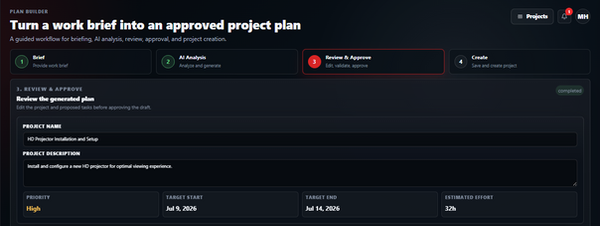
3. Review the project project information created. You can accept what was given, or modify any of the elements provided, add new tasks, delete unwanted tasks, and modify existing task information. After you approve this list, you will be asked to approve the project.
4. You can navigate back to any previous process and make changes, this page will take the changes and complete the project. You will now have access to track progress and ask for additional AI-help.



bottom of page